Launch a modeling calculation
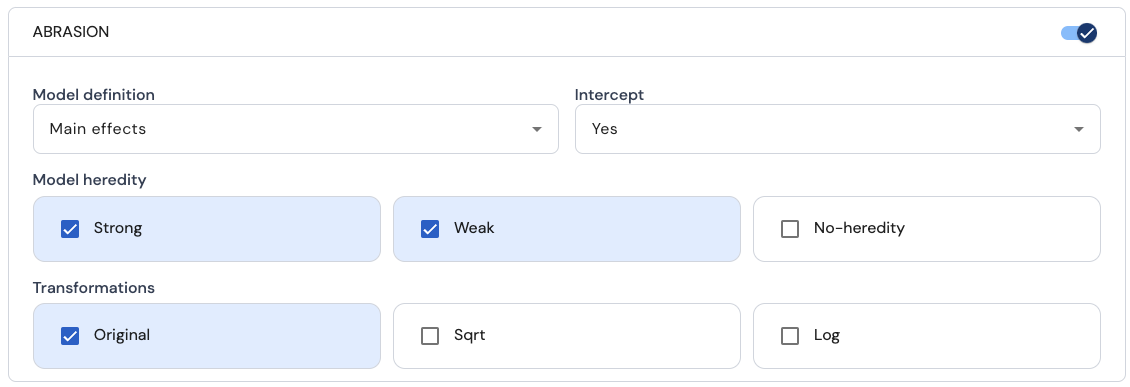
In this page, the user can specify which response columns should be used for modeling by using the sliding toggle buttons (enclosed in a black box in the image below) presented for each row corresponding to each of the response columns.

After a response has been selected, the following options emerge.
-
Model definition:
In the model definition dropdown menu, the following options appear
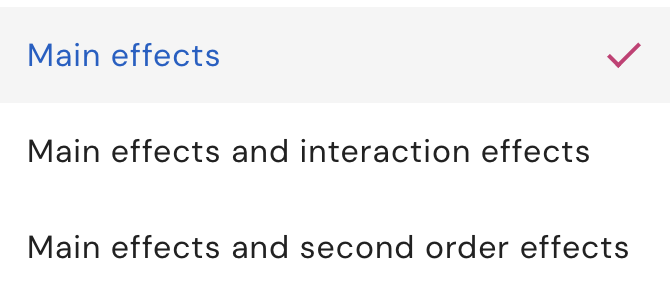
This option can be used to specify all model terms that need to be considered for modeling. A more detailed explanation of these three types of models are as follows:
- Main effects (this includes only first-order effects)
- Main and interaction effects (this includes first-order effects as well as two-factor interaction effects)
- Main and second-order effects (this includes first-order effects, two-factor interaction effects and quadratic effects)
-
Intercept:
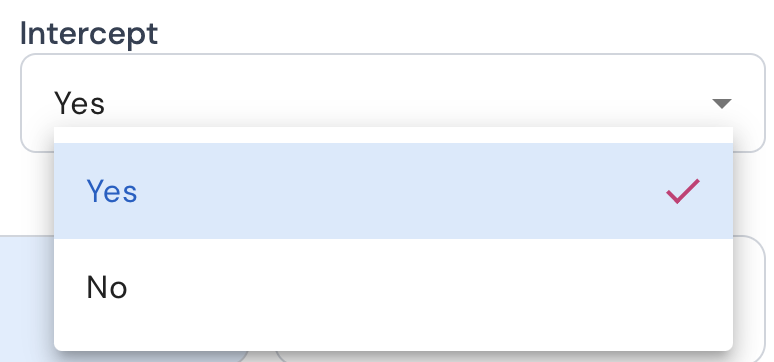
The user can choose to include or exclude the intercept from modeling using the following drop down menu
-
Model heredity:
For model heredity, there are three choices: Strong, Weak and No heredity.
Strong heredity:
• If an interaction effect is included, then both the linear effects of the involved factors are also included in the model.
• If a quadratic effect is included, then the linear effect of the corresponding factor is also included in the model.Weak heredity:
• If an interaction effect is active, then one of the linear effects of the involved factors is also included in the model.
• If a quadratic effect is active, then the linear effect of the corresponding factor is also included in the model.No heredity:
No strong, nor weak heredity.Note: Ockuly et. al (2017) observed that in real experiments, strong heredity occurs more frequently than weak heredity, which in turn occurs more frequently than no heredity.
-
Transformations
The software allows the reponse variable to be transformed if the user wishes to do so. To transform a specific response before modeling, the following options are offered: Original, Sqrt, Log. The original option leaves the response as is, the sqrt option takes the square root of the response, and the log option takes the log of each value in the response column to the base 2. To use the sqrt transformation, all values in the original response column must be greater than or equal to 0, and for the log transformation, all values must be strictly greater than 0. For a given response, all three options can be selected together, in which case three separate analyses are done for each transformation type.
After all above options are correctly selected, click on the Launch modeling button to begin the calculations for model selection. The model selection is performed using the method proposed by Vazquez et. al (2021).
The user will be notified via the Notifications tab when the calculations are complete. When the modeling calculations are completed, the user can navigate to the My DoE items tab, locate their data set under the option Data sets, and select the specific dataset to review the modeling results as shown below. For documentation on modeling results, refer to this page.

References:
- Ockuly, R. A., Weese, M. L., Smucker, B. J., Edwards, D. J., & Chang, L. (2017). Response surface experiments: A meta-analysis. Chemometrics and Intelligent Laboratory Systems, 164, 64-75.
- Vazquez, A. R., Schoen, E. D., & Goos, P. (2021). A mixed integer optimization approach for model selection in screening experiments. Journal of Quality Technology, 53 (3), 243-266.
Page last modified on 2 March 2025