Upload a dataset
Uploading the data
Before the dataset is uploaded, choose one of the two following options for headers:

This is to indicate if there is a header in the dataset that you will upload. After specifying this, copy the dataset from an excel file, click on the plus sign as presented below

and paste the data. On windows, the data can be pasted by pressing CTRL + V. On mac, this can be done by pressing command⌘ + V.
Steps to follow after pasting the data
-
By default, the data in each column of the dataset is assigned to be quantitative. If the user wishes to change some of these default assignments to categorical, then clicking on the dropdown menu
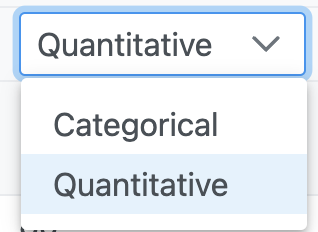
will allow the user to make this change.
-
The last column of the dataset is assumed to be a response column, and the remaining columns are assumed to be factor columns. To change this original assignment toggle between the options provided below

It is possible to have more than one response column. However, all response columns must strictly have data of the quantitative type for modeling. If a column is assigned to be categorical, then this column will not be allowed to be set as a response column.
Here is a screenshot of a dataset uploaded successfully with the appropriate selections for the options described above.
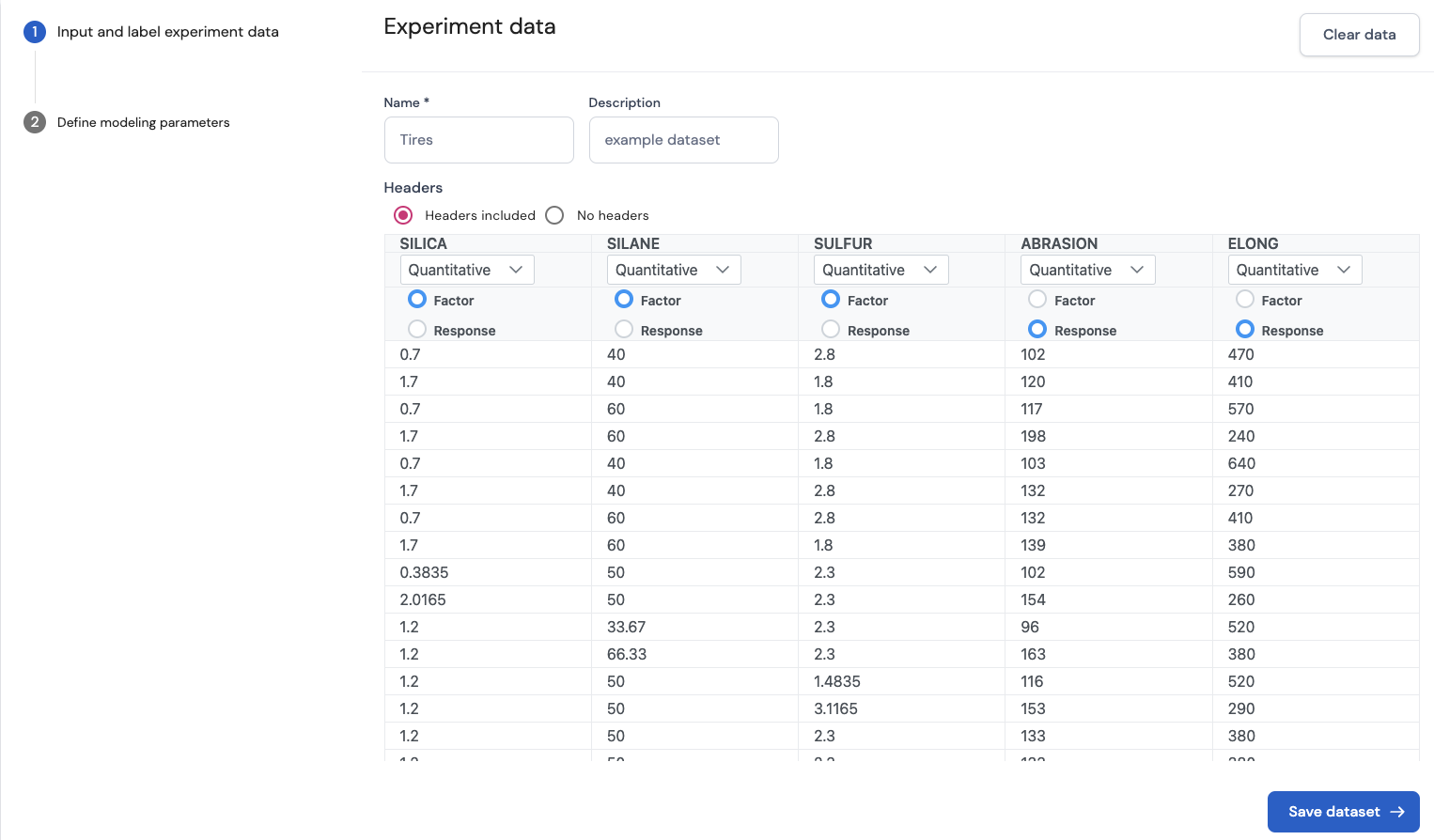
In our example, we take a dataset from the paper of Derringer & Suich (1980). This dataset comes from an experiment where researchers study the effect of three input factors, namely, SILICA, SILANE and SULFUR, on the quality of rubber tires. The quality of the rubber tires is measured using multiple response variables, of which we consider two in our dataset, namely, ABRASION and ELONG (i.e Elongation at break).
After the dataset has been defined appropriately using the options above, click on Save dataset.
References:
- Derringer, G., & Suich, R. (1980). Simultaneous Optimization of Several Response Variables. Journal of Quality Technology, 12(4), 214–219.
Page last modified on 26 February 2025